Milesight NFC Configuration: Setting Up LoRaWAN Sensors With ToolBox and the SCT01
TL;DR: Most Milesight LoRaWAN sensors are set up by NFC configuration: you hold a phone running the free Milesight ToolBox app against the sensor, read its settings, change them and write them back, without opening the case or plugging anything in. It also switches battery sensors on and off. Android phones read sensors most easily; iPhones work but their NFC antenna is smaller. For dozens of sensors or non-technical staff, the SCT01 tool stores 50 configuration files and upgrades firmware in bulk.
Last updated: 14 September 2026
On this page
Key takeaways
- NFC configuration lets you read, change and write a Milesight sensor’s settings by holding a phone against it, with no cables and no need to open the enclosure.
- The phone app is Milesight ToolBox, available for Android and iPhone. It also switches supported battery sensors on and off.
- The workflow is always the same: read, edit, write, then read again to confirm the settings took.
- iPhones work, but Milesight notes they are harder to read with because the iPhone’s NFC antenna is smaller and set further inside the phone.
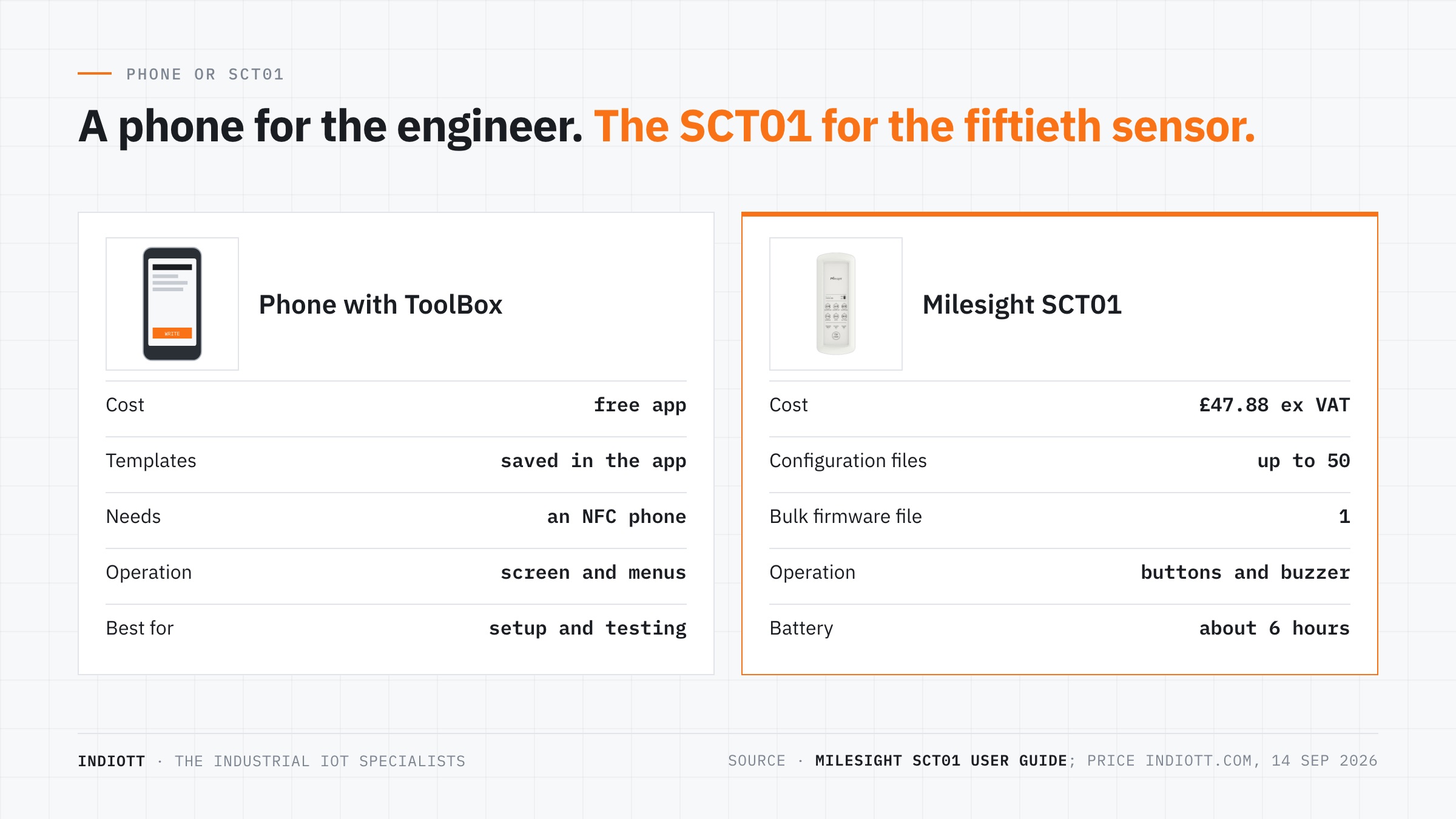
- The SCT01 tool stores up to 50 configuration files, adapts them to different models, and holds one firmware file for bulk upgrades, for £47.88 ex VAT.
What is NFC configuration?
NFC configuration is a way of setting up a sensor by near field communication: the same short-range radio used for contactless payments. A phone or tool held within a few centimetres of the sensor reads its type, status and settings, and writes new settings back, all through the closed enclosure.
Milesight builds NFC into most of its LoRaWAN sensors for exactly that reason. Its own article on NFC for LoRaWAN sensors makes the case plainly: configure the sensor without opening its enclosure, with no USB cables or PC software, and save a template to copy to other sensors.
For an installer this changes the job. A sealed IP67 sensor never has to be opened on site, which is where seals get damaged and moisture gets in. Every battery sensor can arrive switched off to save its battery, and be switched on only when it is on the wall.
What do you need for NFC configuration?
You need an NFC-capable phone with the Milesight ToolBox app installed, or the Milesight SCT01 configuration tool. Nothing else: no PC, no cable and no connection to the gateway or the internet while you configure.
The Milesight ToolBox app on the App Store is free, and the same app is on Google Play. Turn NFC on in the phone’s settings first; on many Android phones it is off by default.
Before you start, have three things ready: the LoRaWAN settings your network server expects, the reporting interval you want, and a record of each sensor’s location, so the name you give it in the app matches where it ends up.
How do you configure a Milesight sensor over NFC?
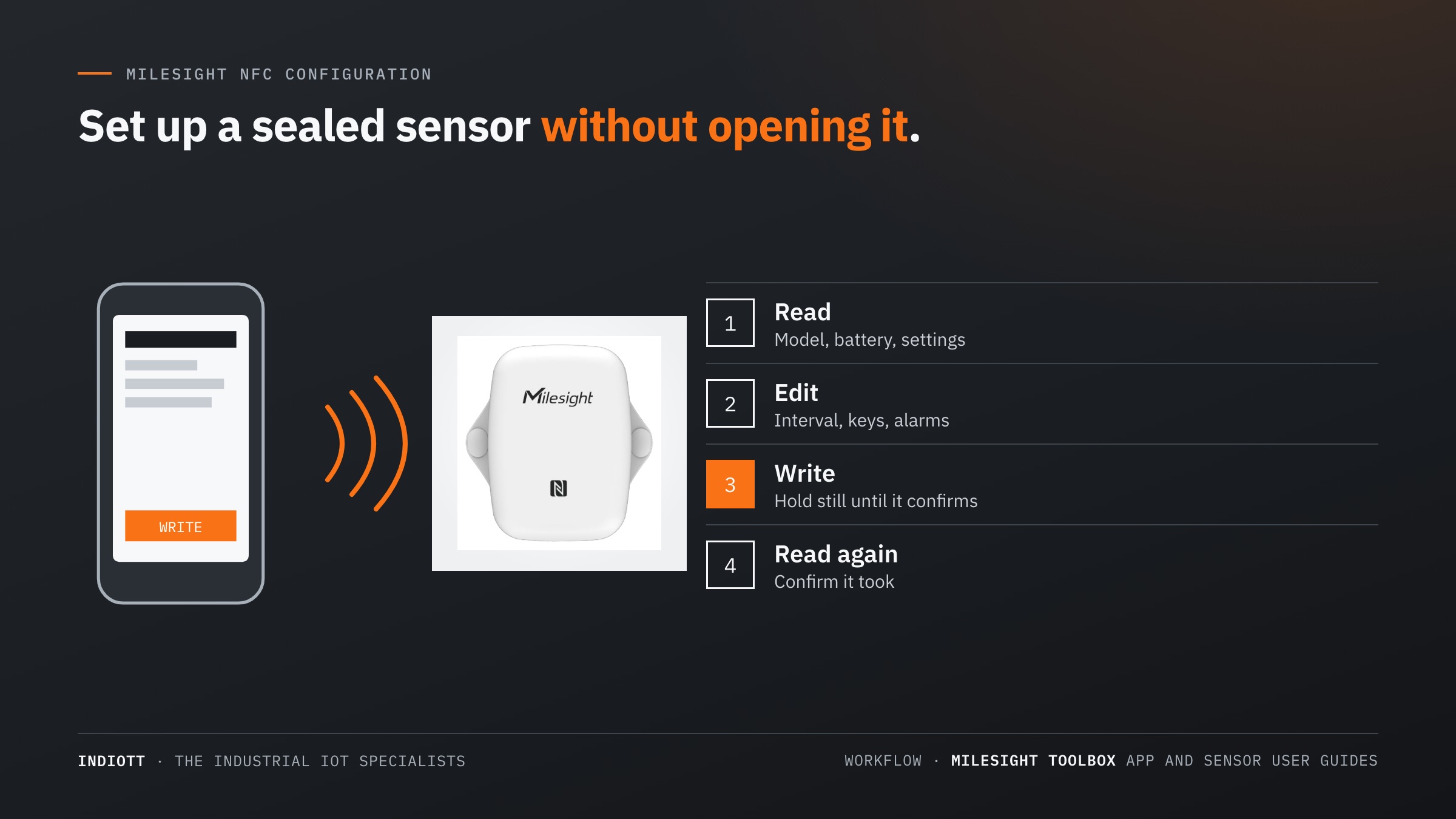
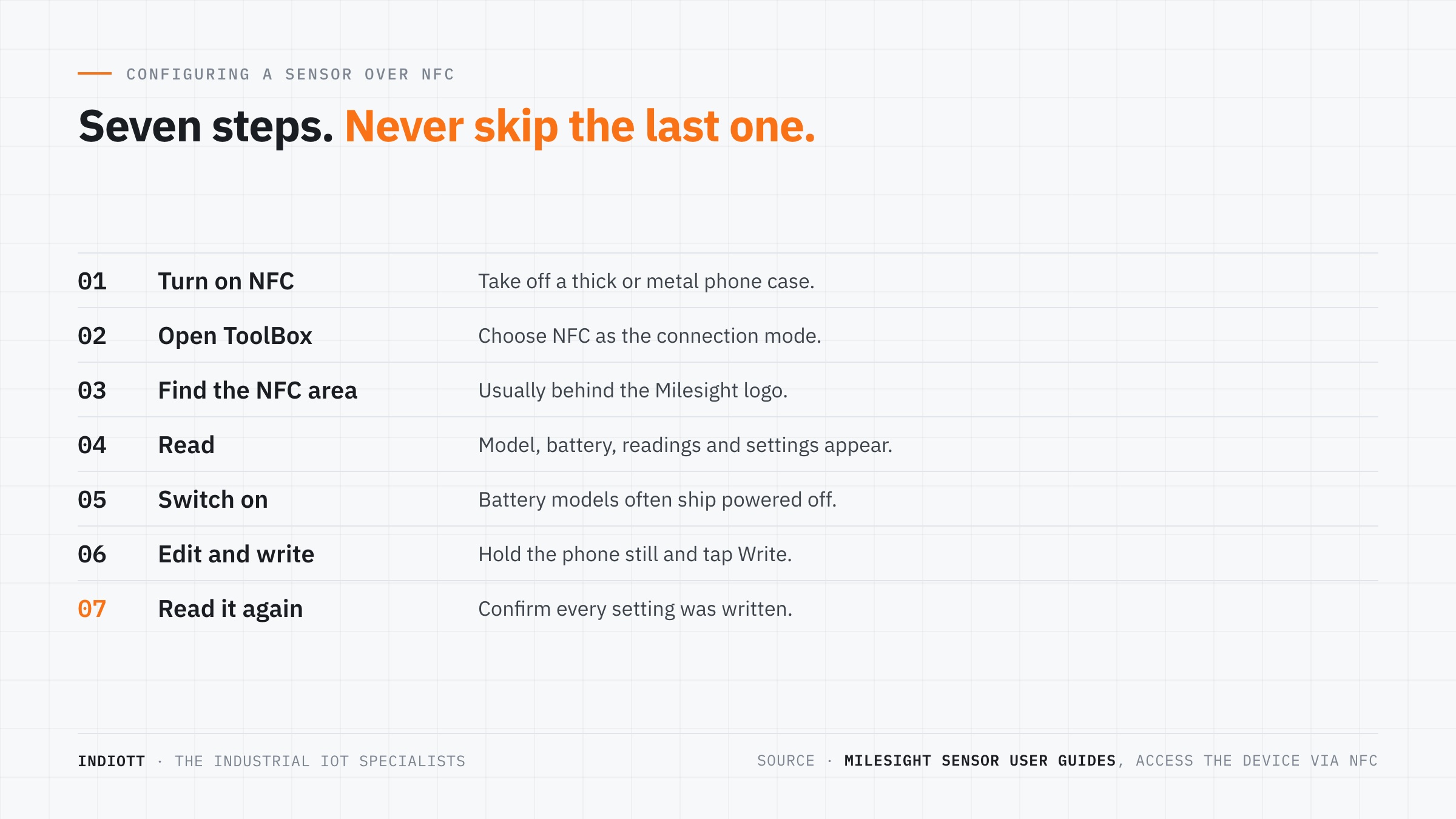
Configuring a Milesight sensor over NFC takes seven steps and well under a minute once you have done it a few times. Milesight’s sensor guides describe the same sequence for every NFC-enabled model.
- Turn on NFC on the phone and take off a thick or metal phone case.
- Open ToolBox and choose NFC as the connection mode.
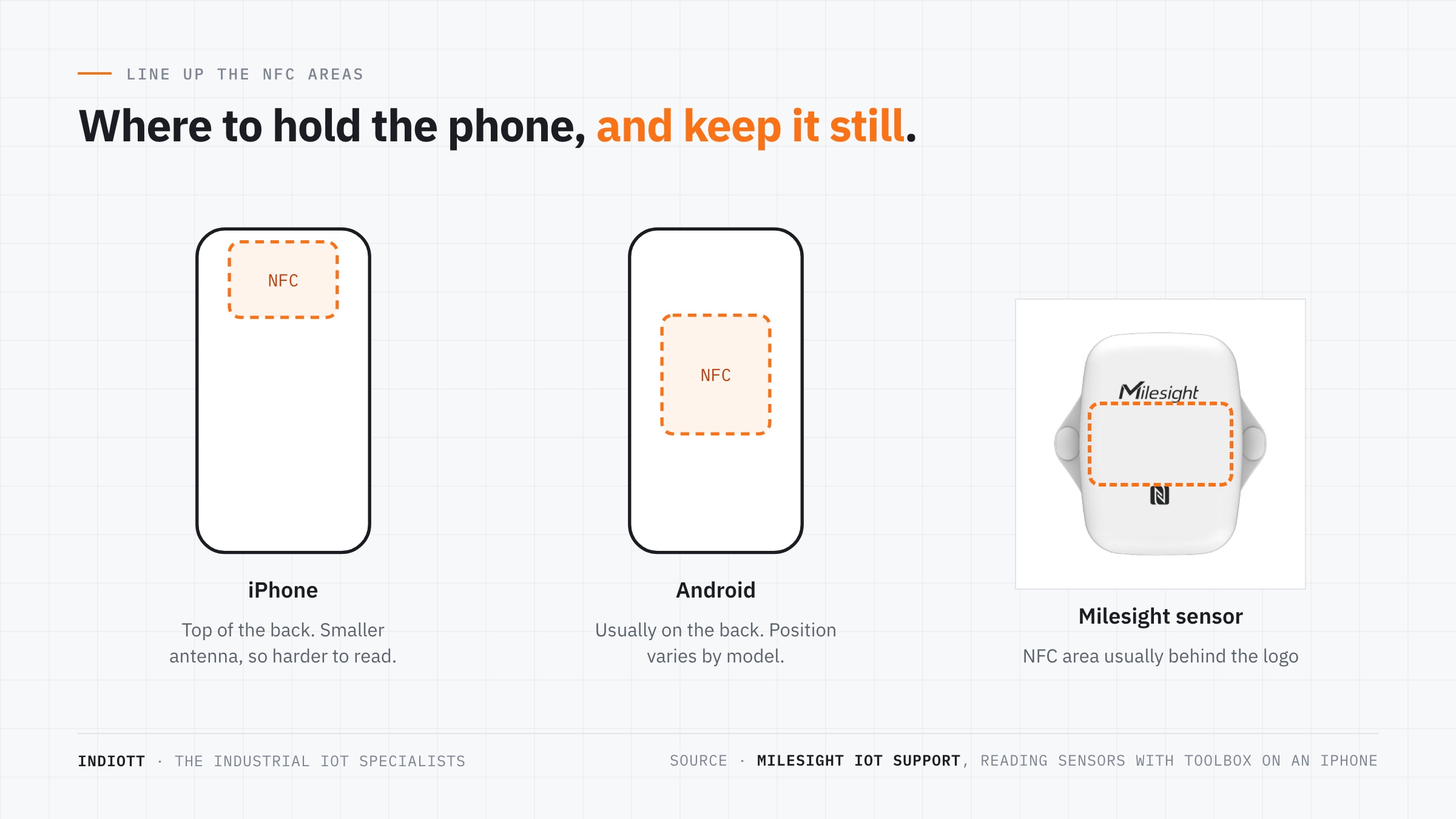
- Find the NFC area. On most Milesight sensors it sits behind the Milesight logo.
- Hold the phone still and read. The app shows the model, battery, current readings and settings.
- Switch the sensor on if it is a battery model that shipped powered off.
- Change the settings and write. Hold the phone against the sensor again and tap Write.
- Read it again to confirm that every setting was written as intended.
Step seven is the one people skip, and it is the one that matters. A write that fails part way, because the phone moved, leaves a sensor that looks configured and is not. Reading it back takes five seconds.
What should you set first?
Set the LoRaWAN join settings, the reporting interval and a password before a sensor leaves your hands. Everything else, such as alarm thresholds, can be changed later by downlink from the network, but a sensor that cannot join the network cannot receive anything.
- LoRaWAN settings. Confirm the frequency plan is EU868 for the UK, and that the join type and keys match what you registered on your network server.
- Reporting interval. Shorter intervals mean fresher data and shorter battery life. Datasheet battery figures are usually quoted at a 10 minute interval.
- Thresholds and alarms. Most Milesight sensors can alarm on a threshold locally, so they report straight away instead of waiting for the next interval.
- Password. Protect the sensor so that someone passing with a phone cannot change its settings or switch it off.
Save the finished setup as a template in ToolBox, and every identical sensor after the first is a matter of loading the template and writing it. That is the batch configuration Milesight describes in its NFC article.
Why is NFC configuration harder with an iPhone?
NFC configuration works on iPhones, but it is fiddlier than on most Android phones. Milesight’s support article on reading sensors with ToolBox on an iPhone explains why: the iPhone’s NFC antenna is smaller and positioned further inside the phone.
In practice that means two adjustments. The iPhone’s NFC area is at the top of the phone, so hold the top of the iPhone’s back against the Milesight logo on the sensor, rather than the middle of the phone. And keep the phone still until the app confirms the read or write, because the iPhone loses the connection more easily if it moves.
If a team configures sensors every week, an inexpensive Android phone kept in the van or the SCT01 tool is usually quicker than persuading an iPhone to read at an awkward angle on a ceiling.
When is the SCT01 worth buying?
The SCT01 is worth buying when you are configuring many sensors, when the people doing it are not technical, or when firmware needs updating across a fleet. It is a handheld NFC tool with a large read area, clear buttons, status lights and a buzzer, so the result of every write is obvious without reading a screen.
According to the SCT01 user guide, it stores up to 50 configuration files and adapts them automatically to different models when they are applied. It also stores one firmware file for upgrading devices in bulk, imports templates and exports logs over Bluetooth, and runs for about 6 hours on its built-in battery.
The practical use is a division of labour. An engineer builds and tests the configuration once in ToolBox and loads it onto the SCT01. An installer on site then switches on and configures each sensor with a button press, and the buzzer confirms it.
What are the limits of NFC configuration?
NFC configuration needs the phone or tool within a few centimetres of the sensor, so it is a job done on the ground before mounting, or with a ladder after. It is not a way to reconfigure sensors across a building; that is what LoRaWAN downlinks from the network server are for.
Not every device is configured this way. Gateways are set up through their web interface, and wired controllers such as the UC300 also use PC software. Some sensors offer both NFC and USB-C configuration. Metal surfaces behind the sensor and thick phone cases can stop a read altogether, which is another reason to configure before mounting on steel.
Frequently asked questions
What app do Milesight sensors use?
Milesight sensors use the free Milesight ToolBox app, available on Google Play and the App Store. It reads and writes settings over NFC, and switches supported battery sensors on and off.
Can I configure Milesight sensors with an iPhone?
Yes, but Milesight notes it is harder than with most Android phones because the iPhone’s NFC antenna is smaller and further inside the phone. Hold the top of the iPhone’s back over the Milesight logo and keep it still.
Do I need an internet connection for NFC configuration?
No. NFC configuration happens directly between the phone and the sensor. The sensor only needs the network when it joins the gateway afterwards.
What does the Milesight SCT01 do?
The SCT01 is a handheld NFC configuration tool that stores up to 50 configuration files and one firmware file, so non-technical installers can configure and upgrade Milesight sensors in bulk with buttons instead of a phone app.
Can I change sensor settings after installation?
Yes. Hold a phone against the sensor again, or send settings by LoRaWAN downlink from your network server without visiting the sensor at all.
Configure once, copy many times
NFC configuration is why a Milesight sensor can be switched on, set up and checked on site in under a minute without opening its case. Save a template for each sensor type, always read back after writing, and give the SCT01 to whoever configures sensors by the dozen.
Browse our LoRaWAN sensor range or the priced monitoring kits, and every part will arrive ready to configure this way.
Next step
Get a priced kit list for your site
Answer three quick questions and tell us where to send it. An engineer replies within one working day with the parts, the prices and the lead time.
Rather talk it through? Call 023 9223 3611
Received. An engineer has it.
You will hear back within one working day with the parts, the prices and the lead time. A confirmation is on its way to your inbox.
If it is urgent, call 023 9223 3611.